PhotoBoost - AI Photo Enhancer
- 4.6
- Rating
- 10.00M
- Installs
- Free
- Price
 Analysis by App-foxy
I approached PhotoBoost - AI Photo Enhancer as the kind of photography app you open when an otherwise useful picture is let down by blur, softness, or age. It is free to install, aimed at Everyone, and developed by Yoob AI. After spending time with its restoration-focused tools, I found that its appeal is less about replacing a full photo editor and more about giving imperfect images a quick, focused rescue attempt.
That distinction matters. PhotoBoost is not the app I would choose for carefully building a complete edit from exposure, color, curves, and masking. Its strength is the moment when a face is slightly unclear, an old family image needs attention, or a photo taken in poor conditions looks too soft to share. The best results come from treating it as a specialist step in a simple workflow rather than expecting artificial intelligence to recreate every missing detail perfectly.
How I use PhotoBoost from the first import to the finished image
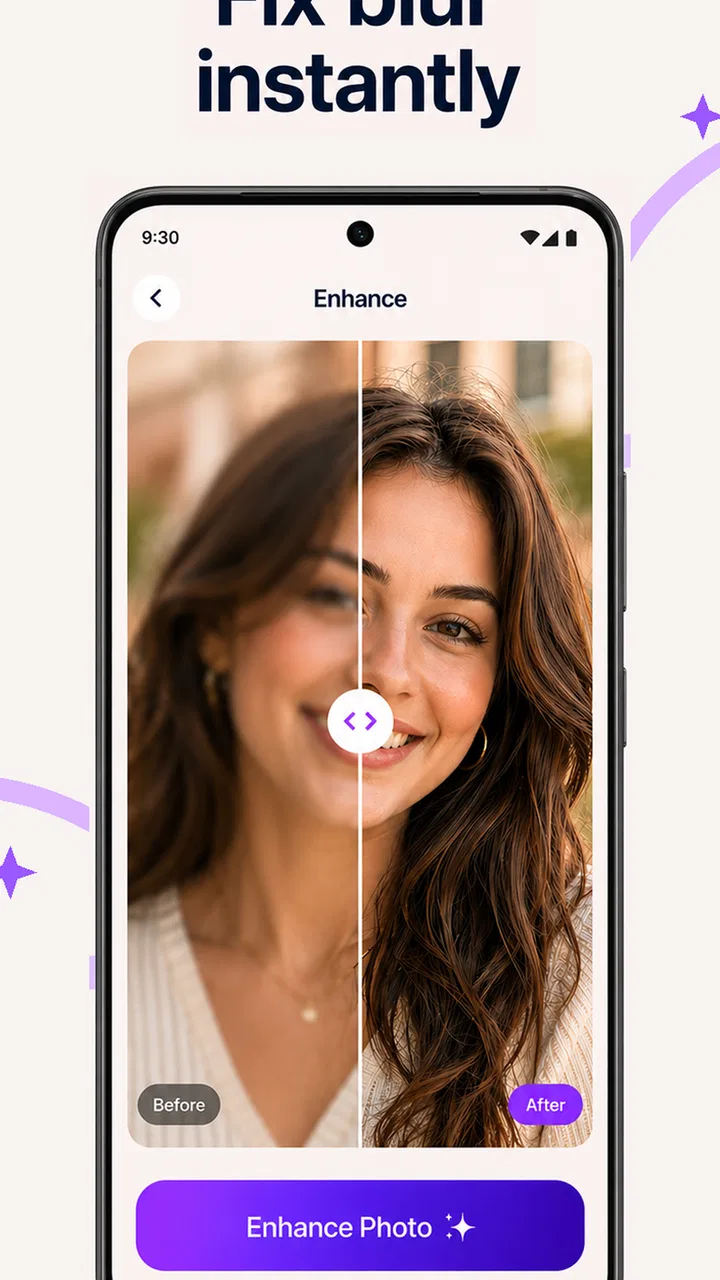
I begin by choosing one image with a clear, specific problem rather than running a whole gallery through the same treatment. After importing it, I compare the result with the original at both close range and normal viewing size, paying special attention to faces and fine textures. That gives me a practical basis for deciding whether to keep the edit, and it leads naturally to the small checks that can make a first attempt more useful.
You May Also Like

 Google Keep - Notes and lists
Google Keep’s Quiet Growth Shows the Appeal of Simpler Notes
As mobile work gets busier, Google Keep keeps winning a simple contest: capture a thought quickly, find it later, and get on with the day.

 Blood Strike: 2.5 Anniversary
Blood Strike’s Loadouts Turn Every Drop Into a Tactical Gamble
A close look at Blood Strike’s custom loadouts: how fast access to signature weapons reshapes its battle royale rhythm, rewards preparation, and narrows the gap between fights.

 Pandora - Music & Podcasts
Pandora’s Music Is Easy to Start, but Harder to Recover
Pandora’s strength is its low-effort path from a seed to a station. Its weak spot is how much confidence it asks you to place in connection, setup, and quiet recovery.

 8 Ball Pool
 Is Built on Rivalries, Rematches, and Routine
A close look at the rivalries, rematches, shared routines, and unanswered safety questions that turn a quick pool match into a persistent mobile community.

 Samsung Music
’s Quiet Strength Is Playing What You Already Own
Its reach comes less from spectacle than from dependable access to a personal library. That simplicity is both the app’s strongest retention engine and its ceiling.

 AccuWeather: Weather Radar
AccuWeather Review: A Quick, Clear Forecast for Everyday Decisions
For everyday plans, the best forecast is the one you can understand quickly. AccuWeather makes rain timing, radar, and local conditions easy to act on, with a few trade-offs.
More From Our News Desk



Start with a clean baseline
My first habit is to keep the original image untouched and use a copy for enhancement. That sounds obvious, but it makes a real difference with AI editing. If the result looks too sharp, too smooth, or oddly reconstructed, I can compare it with the source instead of trying to remember what changed. I also avoid judging the preview only at a small size. A result can look impressive as a thumbnail and less convincing when enlarged.
The basic workflow is straightforward: choose a picture, let the app process it, inspect the enhanced version, and decide whether it is genuinely better. I pay particular attention to eyes, hair, small text, jewelry, and straight edges. These areas reveal whether the app has recovered useful structure or merely produced a more processed-looking image. When the source is only mildly soft, the improvement is usually easier to appreciate than when the picture is severely blurred.
For an everyday example, imagine finding an old phone photo of a family gathering that is slightly out of focus. I would first crop away empty edges, then send the remaining image through PhotoBoost, and finally compare the faces at normal viewing size. If the enhancement makes expressions easier to recognize without changing them, I would keep it. If facial details begin to look artificial, I would use the original instead or limit the edited version to a small print or private album.
Choose the right job instead of pressing enhance blindly
The app’s photography focus becomes clearer when I separate three different problems: blur, low detail, and damage caused by age or compression. They may look similar in a gallery, but they need different expectations. A sharpening-style result can make edges more visible, while restoration is more about making an old image feel usable again. Neither process can reliably recover information that was never captured.
I get the most convincing results from images with a recognizable subject and reasonably stable composition. Portraits, individual objects, and documents with clear outlines are easier to assess than busy scenes full of leaves, crowds, or repeating patterns. In a complicated background, an algorithm may improve one area while making another look strangely uniform. That does not make the app useless; it means I inspect the whole frame rather than trusting the most attractive part of the preview.
A useful rule is to decide the final purpose before editing. For a social post viewed on a phone, a moderate improvement may be enough. For a large print, an important archive, or evidence where accuracy matters, I would be much more cautious. PhotoBoost can improve presentation, but an AI-generated detail should not be treated as a guaranteed record of what was actually in the original photograph.
Settings and choices worth checking before saving
Even when an enhancement app feels automatic, I do not treat the first output as the final answer. I check whether the selected tool matches the problem and whether the image needs a restrained treatment. The strongest-looking version is not always the most natural one. Faces can become overly smooth, skin texture can disappear, and fine lines in clothing or architecture can turn into artificial patterns.
I also look at the image at two distances. First I inspect it close enough to catch halos, repeated textures, and unnatural edges. Then I view it at the size at which I will actually use it. This two-step check prevents me from rejecting a useful result because of tiny artifacts that will never be visible, while also preventing me from sharing an image that only looks good in a small preview.
PhotoBoost is particularly useful when I need a quick before-and-after decision rather than a long editing session. I can use it as a test: if the enhanced version clearly improves the subject, I save it; if it only increases contrast around defects, I stop there. That simple discipline saves time and avoids the common mistake of stacking more processing onto a weak image.
One practical limitation is that the app should not be confused with a full manual editor. If I need precise color correction, selective retouching, perspective control, or detailed layer work, a conventional photography editor is the better companion. PhotoBoost can sit before or after that kind of tool, but it does not replace the control that experienced editors expect from manual adjustments.
Repeatable habits make the app faster
The fastest users are not necessarily the ones who tap through the app most quickly. They are the ones who make the same sensible decisions each time. I keep a small mental checklist: use a duplicate, identify the actual defect, preview at normal size, inspect important details, and compare with the original before saving. This makes the process predictable and reduces the temptation to enhance every image simply because the option is available.
For a group of similar photos, I would not automatically process every frame. I first choose the best-composed image, test the treatment, and then decide whether the rest deserve the same attention. This is especially helpful with several nearly identical portraits. A technically sharper image may still be the wrong choice if someone is blinking or if the expression is less natural.
Another efficient pattern is to use PhotoBoost for the difficult image in a project and leave ordinary images alone. For example, in a small family album, I might enhance one older portrait that is noticeably soft while keeping newer photos in their original form. The album then feels consistent without every picture carrying the same artificial sharpening signature.
I also recommend saving with a clear naming habit outside the app’s editing process, such as distinguishing an enhanced copy from the source in the device gallery. That is not a glamorous feature, but it prevents confusion later. When an AI result is good but not perfect, having both versions lets me choose again when I know whether the image will be printed, posted, or simply viewed on a screen.
Where the AI approach reaches its limits
The central limitation is easy to understand: enhancement is not the same as recovery from a complete original. If a face is hidden by heavy motion blur, if text is reduced to a few indistinct pixels, or if a large area is blocked by glare, the app has to make an educated visual reconstruction. It may produce a plausible result, but plausibility is not proof.
I am especially careful with old photos containing unusual facial angles, damaged sections, or very small subjects. Restoration can make an image more pleasant to view while also changing subtle identity details. For sentimental pictures, I would keep the enhanced version as a presentation copy and preserve the untouched scan as the archival master.
There is also a trade-off between speed and control. PhotoBoost is attractive because it reduces the number of decisions required, but that convenience means I have less influence over exactly which texture is preserved and which is softened. A manual editor is slower, yet it gives me a better route when the image has mixed problems, such as a dark foreground, a noisy sky, and a face that needs separate treatment.
Users should also pay attention to the commercial model. The app itself is free, while in-app purchases range from around two dollars to around two hundred dollars per item. That wide range makes it sensible to examine what is available before committing to a purchase and to decide whether the improvement is valuable for the particular image. Someone who only occasionally fixes one old photo may have a different view of that value from someone restoring a large personal collection.
The technical baseline is also worth noting for compatibility: the current version is 1.1.67 and requires Android 9 or later. The app has been available since December 21, 2022, so it is not a brand-new experiment, but I would still keep expectations tied to the device and image rather than assuming every phone will produce identical results. Processing-heavy photo tools can feel different depending on the handset, especially when working with larger originals.
Who will appreciate it, and who should skip it
I would recommend PhotoBoost to people who regularly encounter photos that are almost good enough. It suits someone cleaning up a phone gallery, preparing a small collection of family images, improving a portrait before sharing it, or trying to make an old picture easier to recognize. It is also approachable for users who do not want to learn a long list of sliders before seeing whether an image can be improved.
It is less suitable for photographers who want a complete editing workspace or a highly repeatable professional color workflow. I would also hesitate to use it as the only tool for documentary, legal, scientific, or archival work where visual faithfulness is more important than attractiveness. In those cases, an AI-enhanced image can be useful as a viewing copy, but the unedited original should remain the reference.
Compared with the usual alternatives in mobile photography, PhotoBoost occupies a narrower but convenient position. A traditional editor offers deeper control and usually handles a broader range of adjustments. A dedicated scanning or archival workflow may be better for preserving damaged originals. A camera app can prevent blur at capture time, which is always preferable to repairing it afterward. PhotoBoost makes the most sense when the picture already exists and I need a focused attempt at making it more usable.
What the reception tells me, and what it does not
The app has built a substantial audience, with over five million installs, a 4.6 average, around six hundred thousand ratings, and around three and a half thousand written reviews. I see that as evidence that the basic promise connects with many people, especially those looking for quick photo improvement. It is encouraging, but it does not remove the need to inspect each result. AI editing quality is highly dependent on the source image and on the viewer’s tolerance for reconstructed detail.
The Everyone content rating makes it approachable for a broad audience, including families sorting through shared pictures. Still, “easy to use” should not be confused with “risk-free for every purpose.” The more emotionally or historically important the image, the more carefully I would compare the edited copy with the original and avoid treating the enhanced result as an exact restoration.
My verdict after using it as a focused photography tool
PhotoBoost works best when I give it a narrow, realistic assignment. It can turn a soft or aging image into something more presentable, and its simple approach is valuable when I want an answer quickly rather than a full editing lesson. The strongest workflow is conservative: start with a copy, choose the tool that matches the defect, check faces and textures, and save only when the result improves the picture at its intended viewing size.
I would not install it expecting a magic repair button or a replacement for a serious photo editor. I would install it as a practical specialist for difficult images that need an extra chance. If you understand the difference between enhancement and factual recovery, its limitations become manageable rather than disappointing. For casual restoration, quick portrait cleanup, and everyday gallery maintenance, I think it is worth trying before moving to a more complicated alternative.
In my experience, the app earns its place through that balance of speed and focus. It does not need to control every part of the editing process to be useful. When the original photo has enough information to work with and the goal is a natural improvement rather than a perfect reconstruction, this is a capable AI photo enhancer for a focused repair workflow.
FAQs for PhotoBoost - AI Photo Enhancer
01What features does PhotoBoost - AI Photo Enhancer offer?
PhotoBoost - AI Photo Enhancer is packed with advanced features such as AI-driven enhancement tools that automatically improve photo quality, adjust lighting, and refine details. It also offers filters, retouching options, and the ability to remove blemishes. Users can easily transform ordinary photos into stunning images with just a few taps.
02Is PhotoBoost - AI Photo Enhancer user-friendly for beginners?
Absolutely! PhotoBoost is designed with a simple and intuitive interface that is perfect for beginners. The app provides guided tutorials and tips to help new users navigate the features effortlessly. Even if you're new to photo editing, you’ll find it easy to enhance your photos with professional results.
03Are there any in-app purchases or subscriptions in PhotoBoost?
Yes, PhotoBoost offers both free and premium features. While the essential tools are accessible for free, there are additional advanced features available through in-app purchases or a subscription model. This allows users to unlock a full suite of professional-grade editing tools for a more comprehensive photo enhancement experience.
04Does PhotoBoost - AI Photo Enhancer support high-resolution images?
PhotoBoost supports high-resolution images, ensuring that enhancements are applied without compromising on quality. Whether you're editing photos from your phone or high-quality images from a DSLR, the app maintains the original resolution and detail, providing optimal results for professional or personal use.
05Is PhotoBoost available on both Android and iOS platforms?
Yes, PhotoBoost - AI Photo Enhancer is available on both Android and iOS platforms. Users can download the app from the Google Play Store or the Apple App Store, ensuring compatibility with a wide range of devices. This cross-platform availability allows users to enjoy seamless photo editing across different operating systems.
Pros
- Enhances photos with one tap.
- User-friendly interface.
- Fast processing speed.
- Supports various image formats.
- No ads in the premium version.
Cons
- Limited free features.
- Requires internet for full functionality.
- Occasional AI misinterpretations.
- High-quality exports are premium.
- Subscription can be pricey.

PhotoBoost - AI Photo Enhancer
Gallery